Dignite Campus student guide
- What is Dignite Campus
- Install the app
- Join your school
- Record your work every day
- Upload your payslips
- Ask your school
- School announcements
- If something goes wrong
What is Dignite Campus
Dignite Campus is the app your school uses. With it you can:
- record your part-time work hours every day
- upload your payslips
- ask your school for help
- get announcements from your school
1. Install the app
Search for “Dignite Campus” on the App Store or Google Play and install it. You can also open the store from the links below; if you are reading this on a computer, scan the QR code with your phone.
| iPhone | Android |
|---|---|
| Open App Store | Open Google Play |
 |
 |
When the app asks to send you notifications, choose “Allow”. Then you will get your school's replies and announcements, and reminders to record your work.
2. Join your school
Have these ready
- School code: ask your school.
- Your Student number, Date of birth and Residence card number.
Steps
- Open the app and tap Join your school.
- Enter the school code, choose Link with my details, then enter your student number, date of birth, residence card number and e-mail address. You will sign in with this e-mail address.
- Tap Verify and continue.
- Create your account on the page that opens. If you already have an account, just sign in.
- Back in the app, tap Sign in.
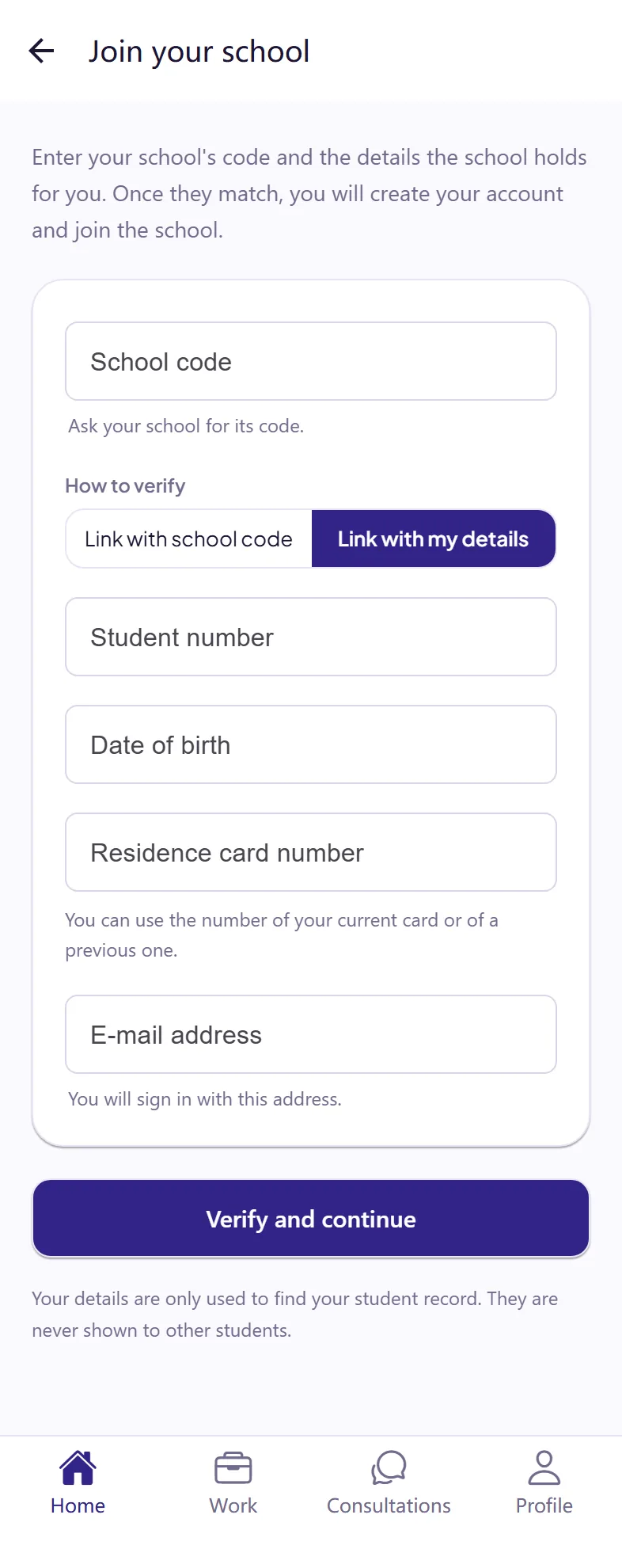
You can verify with your own details, without asking the school for help. If you see “We could not verify these details on our own”, contact your school. They will give you a link code: choose Link with school code, then enter the code and your date of birth to join.
3. Record your work every day
At the bottom of the app, tap Work, then Daily record.
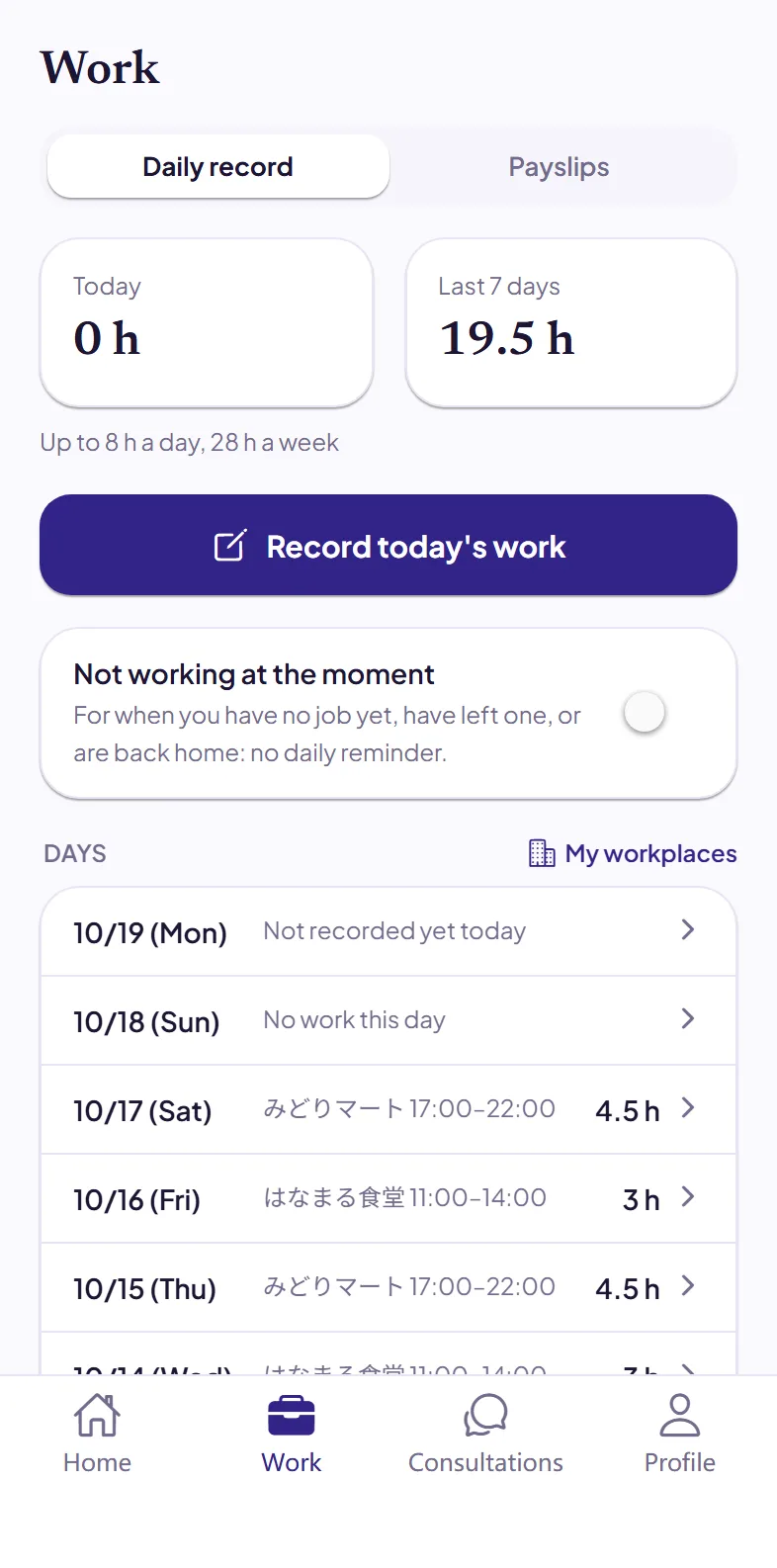
To record your work
- Tap Record today's work.
- If it is the same as last time, just tap Same as last time and it is recorded. If not, tap Add a shift.
- Choose the workplace. The first time, add your workplace first. You only need to add it once.
- Enter the start time, end time and break (in minutes), then tap Save.
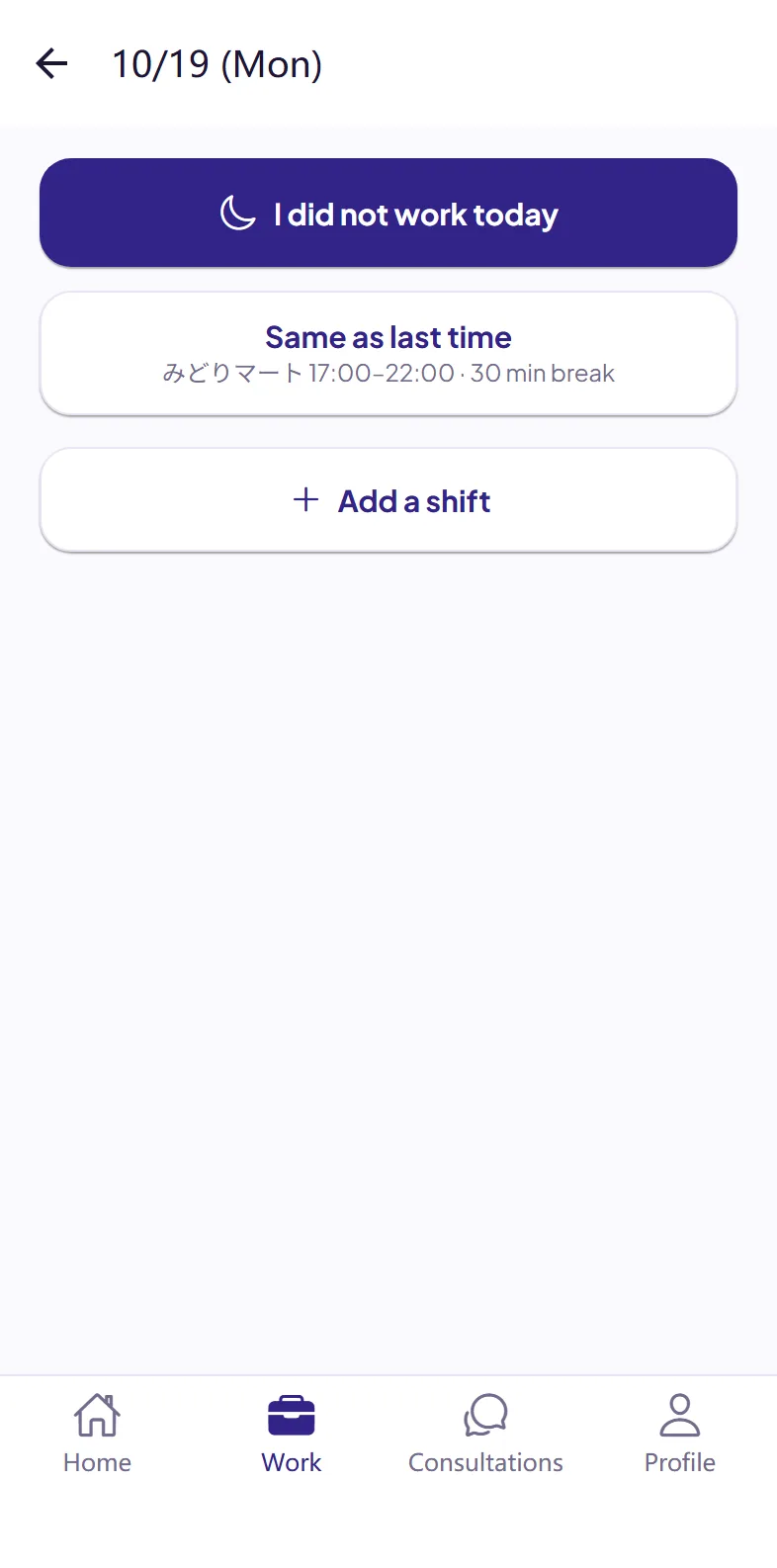
- A night shift that goes past midnight is still one record.
- When adding a shift, you can also tap Same as last time to fill in last time's details and then change them.
- You can fill in days you forgot later: tap the day in the list.
Days without work: tap Record today's work, then I did not work today.
When you are not working for a while: if you have not found a job yet, have quit, or are back in your home country, turn on Not working at the moment. The daily reminder stops. Turn it off when you start working again.
If you have not recorded your work by the time your school set, the app reminds you. The app shows the hours you worked Today and in the Last 7 days, and the limit that applies to you.
4. Upload your payslips
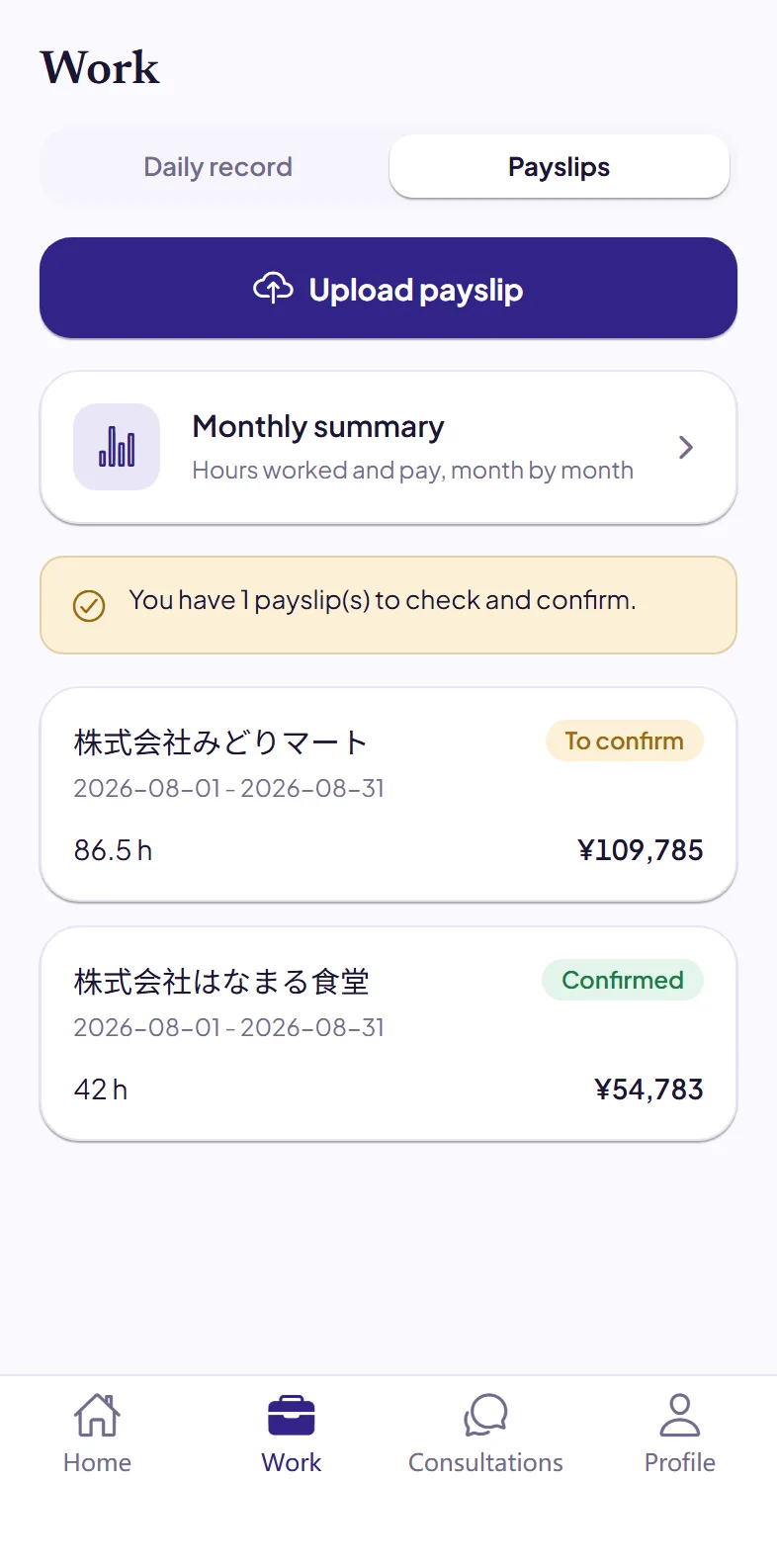
In Work, tap Payslips.
- Tap Upload payslip and choose Take a photo, Choose a photo or Choose a file (PDF).
- The first time, an explanation called “Reading your documents with AI” appears. Read it and tap I agree and continue.
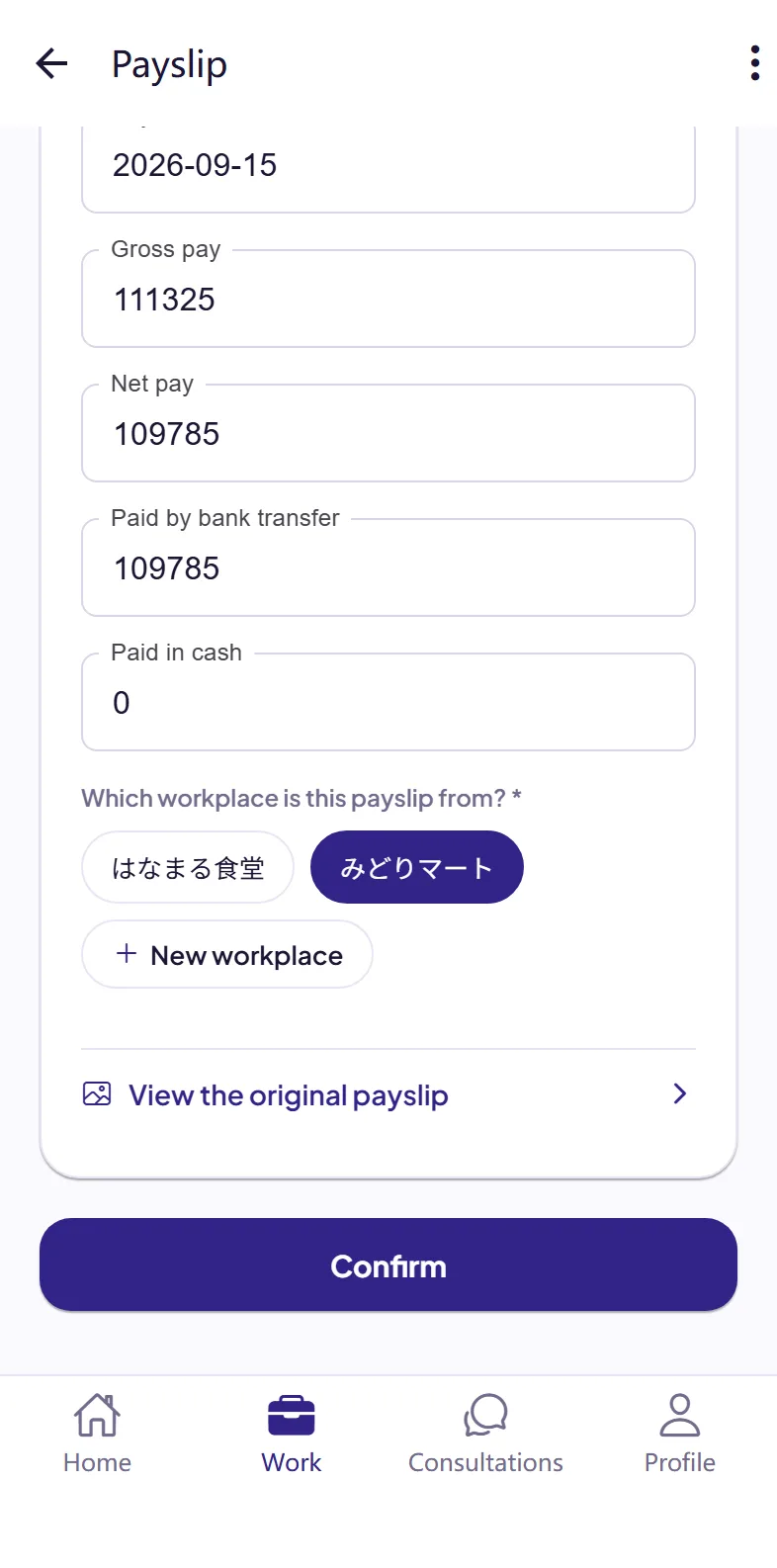
- Reading the payslip usually takes a few minutes. Open it and check the dates, hours and amounts against your paper payslip. Correct anything that is wrong.
- Choose the workplace this payslip is from, and tap Confirm.
- Next, upload a screenshot of your bank statement that shows this pay arriving (tap Upload bank statement). When the payment is found, you will see “The pay was found in your bank statement”.
5. Ask your school
If you have a problem, or something you do not understand, you can tell your school.
- At the bottom of the app, tap Consultations, then New consultation.
- Choose a category, and write a title and the details. You can write in any language you like. You can also attach photos or PDFs.
- Tap Send.
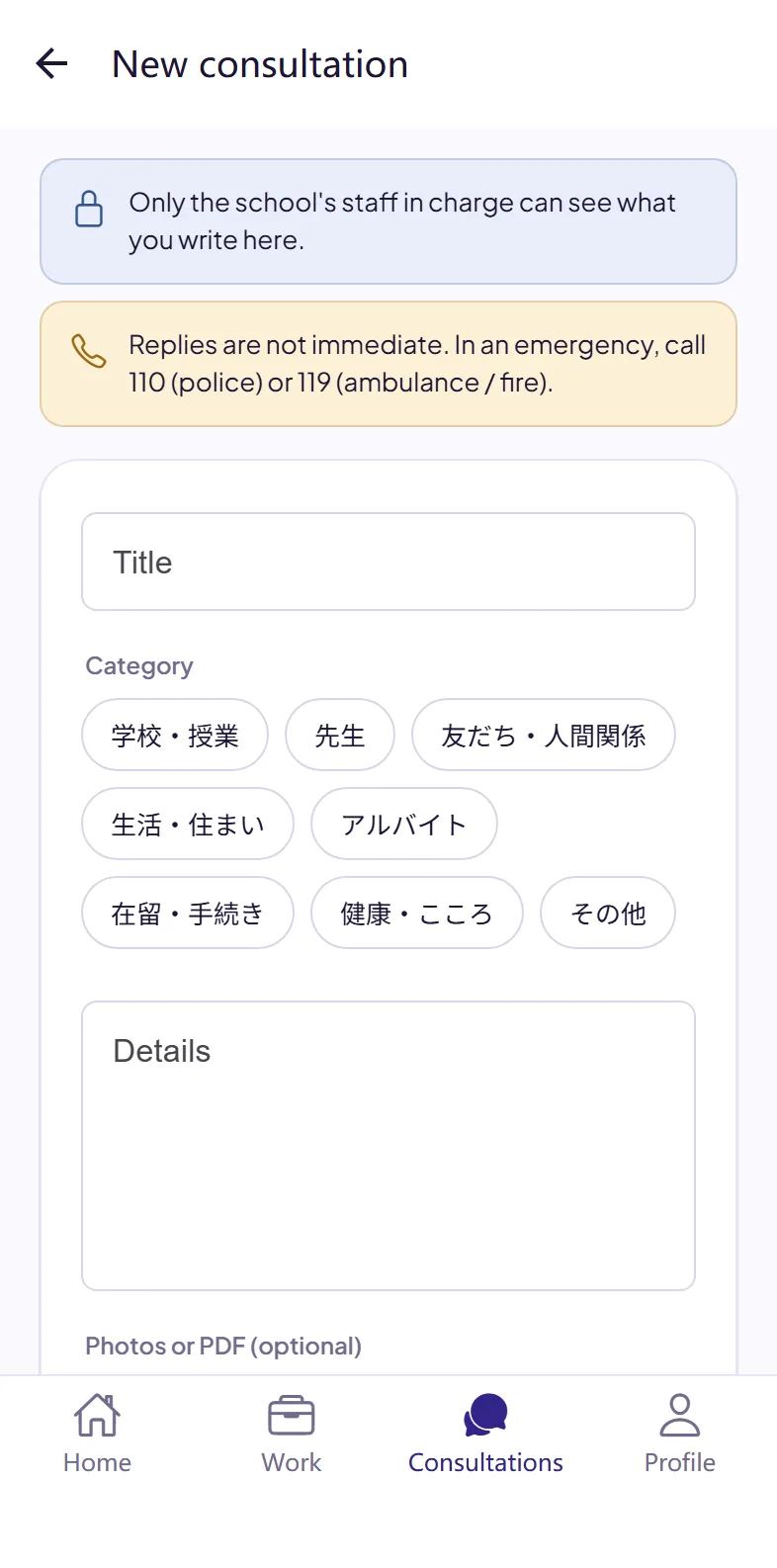
When your school replies, you get a notification. Only the school staff in charge can see what you write.
Replies do not come right away. In an emergency, call 110 (police) or 119 (ambulance, fire).
6. School announcements
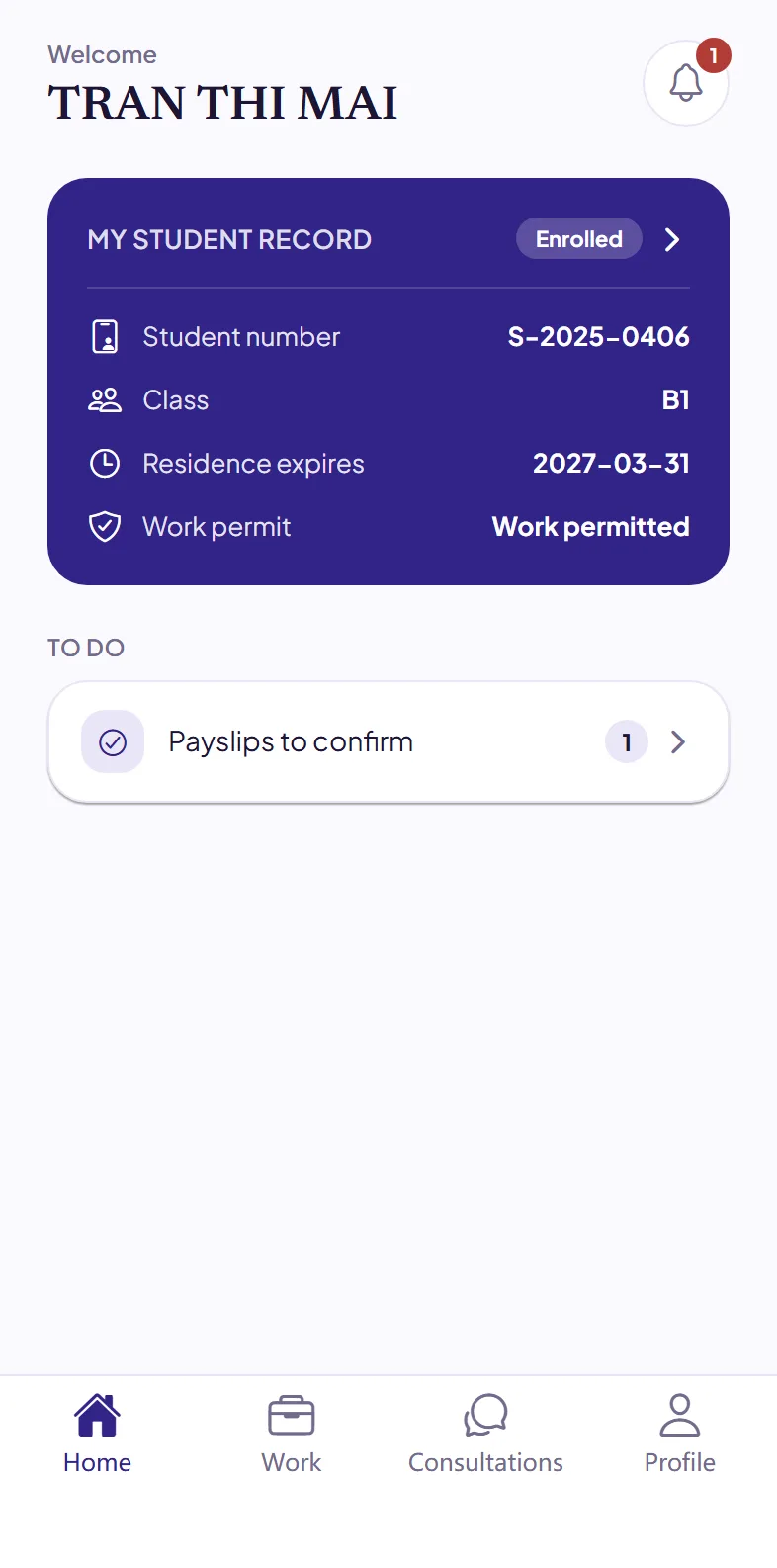
To read announcements from your school, tap the bell at the top right of the home screen. When there is a new one, your phone notifies you too.
If something goes wrong
- You do not know the school code: ask your school.
- Your link code has expired or does not work: ask your school for a new one.
- You got a new residence card: tell your school.
- You get no notifications: in your phone's settings, allow Dignite Campus to send notifications. On Android, also set Dignite Campus's battery usage to “Unrestricted”.